
Bakin Itch.io Game Version Checker
A downloadable bakin plugin for Windows
This RPG Developer Bakin plugin lets you check for the latest version of your game hosted on itch.io, and can return both the version number and a "true" Boolean if there is a new version available. It's got descriptions in both English and Japanese (DeepL).
このRPG Developer Bakinプラグインは、itch.ioでホストされているゲームの最新バージョンをチェックすることができ、バージョン番号と、新しいバージョンが利用可能な場合は「true」ブール値の両方を返すことができます。英語と日本語(DeepL)の両方で説明があります。
⚠️⚠️ IMPORTANT: This will only work if your game has been uploaded on itch.io using the Butler command line tools. Installing butler · The butler manual - itch.io
⚠️⚠️ 重要: これは、あなたのゲームがButlerコマンドラインツールを使ってitch.ioにアップロードされている場合にのみ動作します。バトラーのインストール - バトラーマニュアル - itch.io
Addon Usage | アドオンの使用
EN
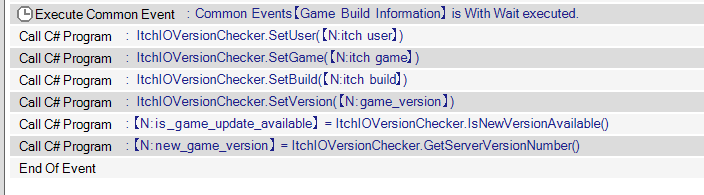
Ideally, add the plugin to a common event, then define four different string variable boxes for the user, game, build and version, then call SetUser, SetGame, SetBuild and SetVersion.
- user: The username URL name on itch.io for the game. For example, my account, Meringue Rouge, has a profile URL of https://meringue-rouge.github.io/, so the string to put here is meringue-rouge.
- game: The game URL name on itch.io. For example, my game, https://meringue-rouge.itch.io/ecrazeus, the string to place here is ecrazeus.

The next two values are manually defined when uploading a game version through itch.io's butler.
- build: The exact name you've used to define the build branch. In the terminal above as an example, I've pushed this plugin onto the itch.io servers on the win-final build branch.
- version: The game version of the game. This is a string, not a number, so you must define this with a string variable box. When using butler to push this plugin on itch.io as an example, in the terminal shown above, I've uploaded version 1.0.0.
When all four are defined, you can then use both IsNewVersionAvailable() (returns true if it finds a different version on the servers) and GetServerVersionNumber() (returns the string value of the version on the itch.io servers).
Recommendations
- Ideally, it's worth making a separate common event just for defining the string variable boxes called "Game Build Information", then calling it in your common event that does the update check.
- This will make it easier to isolate the area of the game code you need to modify to define new versions of your game, keeps your code cleaner, etc...
- Store the game version as both string variable box that gets saved with save files and as a cross-save string variable box, and run a common event to define the game version to both at the start of the game when launched.
- In the future, this will allow you to create common events that can issue game patches if it detects that your game save was last used in an older version, and then do checks and fixes based on your needs (ex: fixing a game breaking bug after a save).
JP
理想的には、プラグインを共通のイベントに追加し、ユーザー、ゲーム、ビルド、バージョンの4つの異なる文字列変数ボックスを定義し、SetUser、SetGame、SetBuild、SetVersionを呼び出す。
- ユーザー: itch.ioでのユーザー名URL。例えば、私のアカウントMeringue RougeのプロフィールURLはhttps://meringue-rouge.github.io/、ここに入れる文字列はmeringue-rougeです。
- ゲーム: itch.io上のゲームURL名。 例えば、私のゲーム、https://meringue-rouge.itch.io/ecrazeus、ここに置く文字列はecrazeusです。
次の2つの値は、itch.ioのバトラーを通してゲームバージョンをアップロードする際に手動で定義します。
- ビルド: ビルドブランチを定義するために使用した正確な名前。上のターミナルの例では、このプラグインをwin-finalビルドブランチでitch.ioサーバーにプッシュしています。
- バージョン: ゲームのバージョン。これは数値ではなく文字列なので、文字列変数ボックスで定義する必要がある。例としてbutlerを使ってこのプラグインをitch.ioにプッシュする場合、上のターミナルではバージョン1.0.0をアップロードしている。
この4つが定義されたら、IsNewVersionAvailable() (サーバー上で異なるバージョンが見つかったらtrueを返す)とGetServerVersionNumber() (itch.ioサーバー上のバージョンの文字列値を返す)の両方を使うことができる。
推薦の言葉
- 理想的には、"Game Build Information "という文字列変数ボックスを定義するためだけのコモンイベントを別に作り、更新チェックを行うコモンイベントの中でそれを呼び出す価値がある。
- こうすることで、新しいバージョンのゲームを定義するために修正する必要のあるゲームコードの領域を簡単に分離でき、コードをすっきりさせることができる。
- ゲームバージョンを、セーブファイルと共に保存される文字列変数ボックスと、クロスセーブ文字列変数ボックスの両方として保存し、起動時にゲームバージョンを両方に定義する共通イベントを実行する。
- 将来的には、ゲームのセーブが古いバージョンで最後に使用されたことを検出した場合、ゲームパッチを発行し、必要に応じてチェックや修正を行うことができる共通のイベントを作成できるようになります(例:セーブ後にゲームを壊すバグを修正する)。
Setting up and using Butler | バトラーの設定と使用
EN
Using Butler might be intimidating, but you're going to need to get used to it if you want version check functionalities. To install and setup Butler on Windows:
- Download Butler over at https://itchio.itch.io/butler.
- Unzip it.
- Place the unzipped folder somewhere safe.
- Open Windows Settings -> System -> Advanced System Settings
- Click on Environment Variables
- In System Variables, highlight Path and then click on Modify
- Press New, and paste the file path of the butler folder.
- Press OK, OK, and then apply changes and OK
- If everything's working, open the windows terminal, and type butler -v. It should not show errors.
When that's done, to upload a build onto itch, you'll now do the following:
- ZIP your exported game project from RPG Developer Bakin.
- Right-click in an empty space on the Windows Explorer (not on a file) in the folder where the ZIP is located, and select Open in Terminal.
Type in the following, but change the values GAME_FILE, ITCH_USER, ITCH_GAME, BUILD, and VERSION_NUM :
butler push GAME_FILE.zip ITCH_USER/ITCH_GAME:BUILD --userversion VERSION_NUM
- GAME_FILE.zip: the name of your zip file in the directory that you want to upload.
- ITCH_USER: same as the user field we used in the plugin (ex: meringue-rouge)
- ITCH_GAME: same as the game field we used in the plugin (ex: ecrazeus)
- BUILD: a custom name to define the build branch you want to upload to.
- It can be anything, but having win- at the start will automatically label the game for Windows on itch.
- Some ideas include win-final for public stable builds, win-beta for a beta build, win-experimental, etc...
- In the plugin, you must correctly check which build your version checking for. For example, if you release a private or beta build, you should tell the game it is a private build through the variables, that way it'll only check for private builds.
- VERSION_NUM: the version number. It can be a single number, numbers with dots in between, an actual phrase... it's a string. That's why the plugin asks you to use a string variable box.
- Keep it readable and logical for yourself. I personally use 1.2.3 as a template, with the 1 being for major game updates (think expansions), 2 for minor additions (small content updates, side-quests, etc), and 3 for bug fixes.
JP
Butlerを使うのは敷居が高いかもしれないが、バージョンチェック機能を使いたいのであれば、慣れる必要があるだろう。WindowsにButlerをインストールしてセットアップする:
- バトラーのダウンロードはhttps://itchio.itch.io/butler。
- 解凍してください。
- 解凍したフォルダを安全な場所に置く。
- Windowsの「設定」→「システム」→「システムの詳細設定」を開く
- 環境変数」をクリック
- システム変数]で[パス]をハイライトし、[変更]をクリックします。
- Newを押し、butlerフォルダのファイルパスを貼り付ける。
- OK、OKを押し、変更を適用してOKを押す
- すべてがうまくいっているなら、ウィンドウズのターミナルを開き、butler -vとタイプする。エラーは表示されないはずだ。
それが終わったら、itchにビルドをアップロードするために、次のようにする:
- RPG Developer BakinからエクスポートしたゲームプロジェクトをZIPで圧縮します。
- ZIPがあるフォルダのWindowsエクスプローラ上の何もない場所(ファイル上ではない)で右クリックし、「ターミナルで開く」を選択します。
次のように入力するが、GAME_FILE、ITCH_USER、ITCH_GAME、BUILD、VERSION_NUMの値を変更する:
butler push GAME_FILE.zip ITCH_USER/ITCH_GAME:BUILD --userversion VERSION_NUM
- GAME_FILE.zip:アップロードしたいディレクトリのzipファイル名。
- ITCH_USER: プラグインで使用したユーザーフィールドと同じ (例: meringue-rouge)
- ITCH_GAME: プラグインで使用したゲームフィールドと同じ (例: ecrazeus)
- BUILD: アップロード先のビルドブランチを定義するカスタム名.
- 何でも良いが、最初にwin-を付けると、自動的にitchのWindows用ゲームと表示される。
- いくつかのアイデアには、公開安定版ビルドのためのwin-final、ベータ版ビルドのためのwin-beta、実験的なwin-experimentalなどがある。
- プラグインでは、バージョンをチェックするビルドを正しくチェックする必要があります。例えば、プライベートビルドやベータビルドをリリースする場合、変数を通してプライベートビルドであることをゲームに伝える必要があります。
- VERSION_NUM: バージョン番号。これは文字列です。文字列です。プラグインが文字列変数ボックスを使うように要求するのはそのためです。
- 自分にとって読みやすく、論理的であることを心がけてください。私自身は1.2.3をテンプレートとして使っていて、1はゲームのメジャーアップデート(エキスパンションだと思う)、2はマイナーな追加(小さなコンテンツのアップデート、サイドクエストなど)、3はバグフィックスに使います。
Download
Click download now to get access to the following files:
Development log

Leave a comment
Log in with itch.io to leave a comment.